
Monitor a CAN bus and send frames from the IoTSploit Toolkit
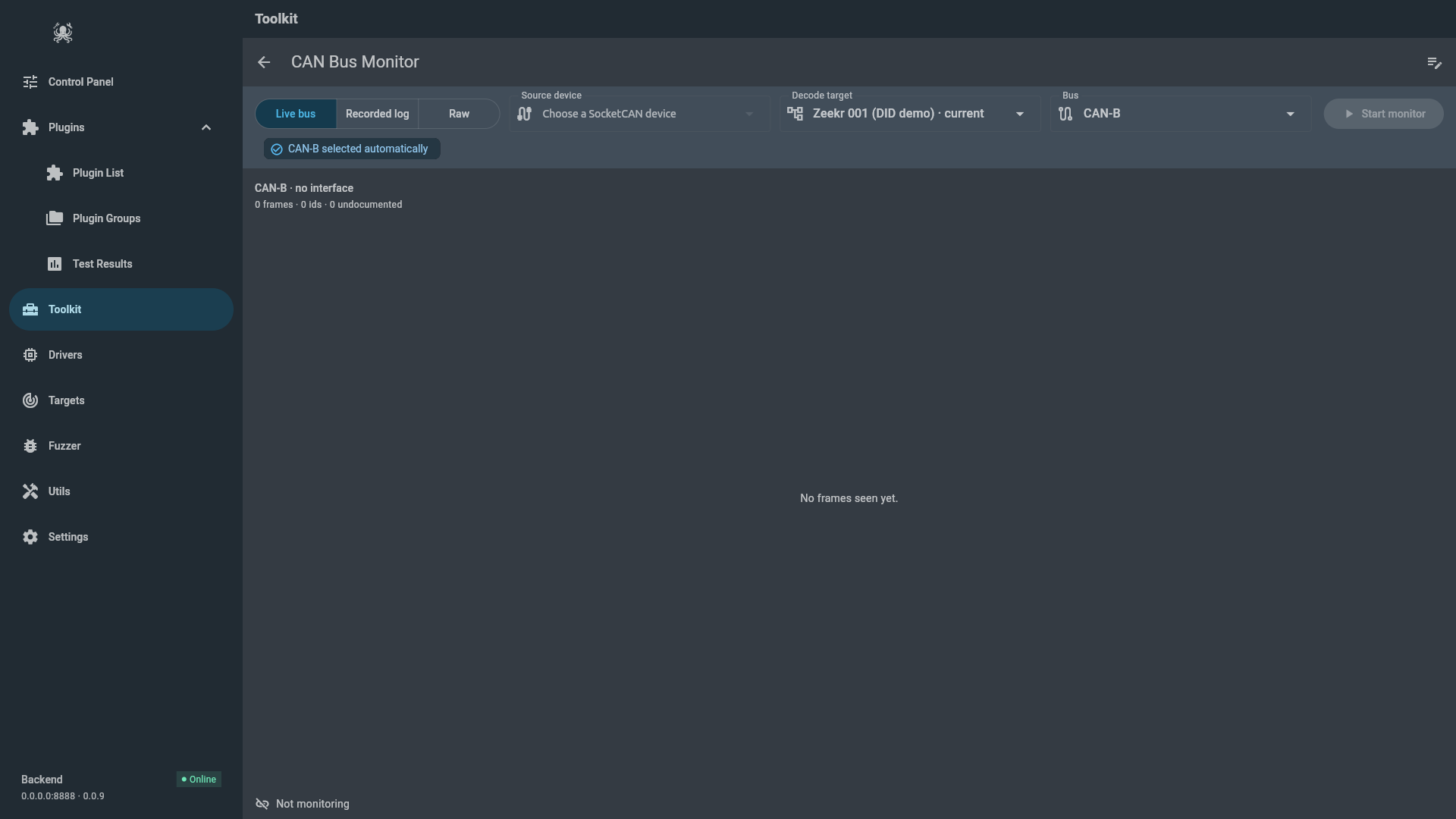
CAN Bus Monitor puts a SocketCAN interface on screen. You choose where the frames come from — a live bus, a recorded log, or a raw socket with no decoding — and the page shows the traffic it carries. Against a target that documents its CAN buses, the same page decodes each frame into signal values, and a separate composer sends a single validated frame back onto the bus.
Availability and requirements
Section titled “Availability and requirements”CAN Bus Monitor is a desktop-only tool: it needs the operating system’s SocketCAN sockets and the backend that owns them, so the Web, Android, and iOS builds do not show it. Open it at Toolkit → CAN Bus Monitor.
It needs three things to be useful:
- A SocketCAN interface the kernel knows about. On Linux this is a physical adapter (PEAK, Kvaser, an 8devices USB2CAN, and so on) or a virtual
vcaninterface. The adapter must be brought up and given a bitrate outside IoTSploit — the application reads the link, it never configures it. - The
drv_socketcandevice driver enabled on the backend. This is the driver that scans interfaces, opens the bus, and forwards frames. - The IoTSploit service reachable. The device list, the command endpoint, the plugins, and the frame stream all run on the backend, not in the UI process.
Backend endpoints this page uses
Section titled “Backend endpoints this page uses”If you are debugging a deployment, these are the calls behind the screen:
| Purpose | Endpoint |
|---|---|
List devices (the page keeps dynamic SocketCAN_* entries) | POST /api/list_devices/ |
| Start, stop, dump, or send on an interface | POST /api/execute_device_command/drv_socketcan/ |
| Raw frames for one device | WebSocket /ws/device/stream/<device_id>/ |
| Decoded live capture or log replay | POST /api/execute_plugin/ with the CAN Live Capture plugin |
| Decoded capture snapshots | WebSocket /ws/device/stream/can_capture_<bus_id>/ |
| Preview or transmit a target-defined frame | POST /api/execute_plugin/ with the CAN Frame Composer plugin |
| Score traffic or a log against a target’s buses | POST /api/identify_can_bus/ |
| Read a log’s format and channels | POST /api/inspect_can_log/ |
Choose a source and connect
Section titled “Choose a source and connect”The top-left selector decides what the whole page is for. It has three values, and only the inputs that value consumes stay on screen.
- Live bus — read a running interface and decode it against a target. This needs a Decode target and a Bus as well as a device.
- Recorded log — replay an
.asc,.blf,.log, or.trcfile and decode it. The file is uploaded to the backend and scored before it plays. - Raw — read frames with no target and no decoding, and send a hand-written frame. This is the fallback when there are no definitions to decode against; picking it is an explicit choice, not the result of having no target.
Whichever source is selected, a frame in Raw mode is treated as bytes. The same bytes in Live bus mode are looked up in the target’s definitions. That is the central difference on this page, and it is why the source selector disables itself while a run is active.
Interface and connection state
Section titled “Interface and connection state”The Source device list contains the interfaces the backend scanned, filtered to dynamic SocketCAN_* entries. Each row is a device_id such as vcan_001 and an interface name such as vcan0; the header shows the interface the traffic table is bound to, or no interface.
Above the table a strip reports the link as the kernel has it:
- virtual interface for
vcan/vxcan, hardware interface for a real adapter; - the configured bitrate, or
bitrate not configured; - CAN FD or classic, from the interface MTU;
- a controller-state chip:
ERROR-ACTIVEis healthy,ERROR-WARNINGis a warning, andERROR-PASSIVEorBUS-OFFis shown as an error.
Bitrate and FD mode are deliberately read-only. They are host configuration, and a control here could only lie about what it changed. Hovering the strip shows the command that does configure them, for example:
sudo ip link set can0 type can bitrate 500000 dbitrate 2000000 fd onTo open a raw session, select the device and choose Open port. The page asks the backend to start the driver, then opens the frame socket. The footer reads Connected · N identities while the port is open and Disconnected when it is closed; Close port stops the driver and closes the socket.
For a decoded session, choose the Decode target and Bus and select Start monitor. The page runs the CAN Live Capture plugin in monitor mode and follows its snapshot stream. The footer reads Monitoring · N frames; Stop monitor cancels the backend execution.
Choosing the right bus
Section titled “Choosing the right bus”When a target documents more than one CAN bus, a radar button appears on the Bus field. Identify bus scores what is on the wire — six seconds of live traffic, or the whole log — against each bus the target defines and reports how many observed IDs matched. A wrong bus does not fail; it decodes every frame into a plausible wrong value, so this check is worth running before you trust a decode. The chip beside the field then says whether the bus was chosen automatically, manually, or identified.
Read the traffic table
Section titled “Read the traffic table”In Raw mode the table has four columns:
| Column | Meaning |
|---|---|
| ID | The arbitration ID in hex, as the driver reported it (0x123). |
| Frame count | How many frames with that ID have arrived since the table started. |
| DLC | The data length code of the most recent frame. |
| Data | The payload bytes in hex. |
Frames are folded by ID: a repeated ID updates one row and increments its count rather than adding a row. Only the 100 most recent identities are kept, so a very busy bus does not grow the table without bound. The empty state distinguishes the two cases that matter: Open the port to monitor raw CAN traffic. before connecting, and No frames seen yet. after, when the bus is simply quiet.
In Live bus or Recorded log mode the table is richer. Each row shows the frame ID, the message name from the target (Undocumented when the target has no definition for it), the measured period, the count, and the last payload. Selecting a row opens an inspector with the decoded signals and their values. Totals above the table read N frames · N ids · N undocumented, and an undocumented ID is kept as a finding rather than hidden.
Switching source clears the decoded table and resets the run’s totals and bus-health notices, and choosing another target or bus resets the decoded view so one bus’s traffic is never shown under another bus’s definitions. The raw table keeps the identities it has already seen while the page stays open. After a raw send is confirmed, the composer clears the Data field so the same payload is not resent by accident; the ID and DLC stay.
Send a raw frame
Section titled “Send a raw frame”The compose button in the app bar opens the raw composer when the source is Raw and the port is open. It has three fields:
- CAN ID (hex) — for example
7DF. - Data length (DLC) — a number from
1to8. - Data (hex) — whole bytes, for example
0102030405060708.
Nothing is sent until the server confirms it. The page validates the frame before it reaches the socket, and each check exists because the far side would otherwise turn a bad request into a stack trace or a frame of the wrong length:
- the ID must be hexadecimal;
- the DLC must be an integer between
1and8; - the data must be an even number of hex digits;
- the number of data bytes must equal the DLC.
If the server refuses the frame (an invalid ID, a rejected payload, a driver that cannot send), the composer shows the reason and stays open. If no confirmation arrives within five seconds, it says so rather than reporting success: No confirmation came back within 5s; the frame may not have been sent. Only a confirmed send closes the dialog.
The composer sends a standard, classic frame. Extended IDs and CAN FD are handled by the target-aware composer and the driver, not by this dialog.
Receiving frames does not tell you what they mean
Section titled “Receiving frames does not tell you what they mean”A raw ID and its bytes are not self-describing. 0x123 with DE AD BE EF is four bytes on the wire and nothing more until a definition says which bits are which. Reading meaning out of raw traffic is guesswork, and a confident guess is worse than an admitted gap.
The page only decodes when you give it a target. The target’s CAN definitions — imported as DBC, ARXML, or part of the target model — provide the frame names, signal layouts, scaling, and units. With a target selected, each frame is looked up and decoded against that target’s bus. Without one, the Raw table shows exactly what arrived.
Even with a target, two findings are not errors and are shown as they are:
- undocumented — the target documents no frame with this ID on this bus. The traffic is real; the target simply has not described it.
- decode failed — the ID is known but the bytes could not be decoded, with the reason shown.
The decode is only as good as the target. Bitrate, sample point, and the recording setup all decide whether the bytes are the bytes the sender meant, and a wrong bus produces a wrong-but-plausible decode. Treat a decoded value as a hypothesis to confirm, not a fact.
Bus faults are handled separately from traffic. A SocketCAN socket delivers controller faults alongside data, and an error frame carries an error class where a data frame carries an address. The page never lists one as a frame; it shows Bus fault: <description> (count), which is the difference between a quiet bus and a controller that cannot read the bus at all.
Transmitting against a target
Section titled “Transmitting against a target”For a target-defined frame, the compose button opens a different composer. It works signal by signal from the target’s catalogue: pick the frame, enter each active signal (all of them are required), and preview. Preview resolves and encodes the frame and returns the exact bytes without touching hardware — it works even on a host with no CAN interface.
Transmitting requires a fresh preview of the current form. Each preview carries a digest that covers the target, the frame definition, the values, the resulting bytes, and the channel. If anything changed between preview and transmit, the digest no longer matches and the send is refused rather than putting different bytes on the wire than the ones you approved. If the target is not marked active, the composer warns that its topology may be an incomplete extract and requires a separate acknowledgement before transmit.
The digest is a consistency guard, not authorization. It is not a one-time token, and repeating a confirmed call sends another frame. Authorization and rate limiting are deployment concerns. Bring the interface up and set its bitrate outside IoTSploit; the composer does not change link configuration.
Limitations
Section titled “Limitations”- Desktop only; no Web, Android, or iOS support.
- The link’s bitrate, FD mode, and up/down state are host configuration and are read-only here.
- One process should own an interface at a time; a second reader can conflict with an active capture or composer session.
- A decoded value is only as reliable as the target’s definitions and the bus you selected.
- A successful send means the bytes left the socket; it is not a security or compatibility verdict.
Troubleshooting
Section titled “Troubleshooting”| Symptom | What to check |
|---|---|
| No devices in the Source device list | The interface exists as a dynamic SocketCAN_* device; run ip link and confirm it is up |
Open port fails | The backend cannot open the interface; check drv_socketcan is enabled and the interface name |
Footer stays Disconnected | The frame socket did not open; confirm the service is reachable and the device id is current |
| No frames after connecting | The bus is quiet, the bitrate/termination is wrong, or nothing is transmitting |
bitrate not configured | Configure the link outside IoTSploit, then reopen the port |
Bus fault: … | A controller fault, not traffic; inspect the wiring, termination, and bitrate |
A frame shows as Undocumented | The target has no definition for that ID on that bus; import one to decode it |
| Send returns a validation message | Fix the ID, DLC, or data mismatch the message names |
| Send reports it may not have been sent | No confirmation within five seconds; check the backend and the interface |
Verified lab run
Section titled “Verified lab run”The receive and send paths were reproduced on an isolated virtual bus, with no vehicle or adapter involved:
- A
vcan0interface was created and brought up (sudo modprobe vcan;sudo ip link add dev vcan0 type vcan;sudo ip link set up vcan0). A virtual bus loops transmitted frames back to every socket on it, so one machine can be both ends. - The backend’s scan reported the interface as
SocketCAN_vcan0(device_idvcan_001), flaggedvirtual, FD-capable, with no bitrate — exactly what the CAN screen lists. - Receive: an independent peer socket put one harmless frame on the bus, ID
0x123, dataDE AD BE EF. Thedrv_socketcandriver received it and classified it as data withid=0x123,data=deadbeef,dlc=4, and metadatainterface=vcan0,is_extended_id=false,is_fd=false,is_remote_frame=false. - Send: the driver’s
sendcommand put0x123 / DEADBEEFback on the bus, and the peer socket received it. - Validation: a send without a payload was refused with
send requires data, and a send without an ID withsend requires a CAN id. - The driver’s status then read
interface=vcan0,owns_link=false, confirming it used a link it did not bring up and left it as it found it.
This is the software path the app uses on any SocketCAN interface. A physical vehicle bus is not required to verify it, and none was attached.
Next step
Section titled “Next step”To see how CAN analysis fits with the Toolkit’s other device tools, read Targets and hardware drivers. For the map of where each tool runs, see IoTSploit UI feature map.