
Organize fuzzer tests with groups, cases, and protocol frames
The Management tab of Fuzzer is where you define what a campaign runs: test groups, the test cases inside them, and the protocol frame each case sends. Management authors and stores these definitions on the backend; the Testing tab is where they execute. This guide covers authoring and organizing tests, building and validating frames, and moving data in and out. Running a campaign and reading its results are covered in separate guides.
Before you start
Section titled “Before you start”Management talks to the backend configured in the Configuration tab; the default is http://localhost:8888. If the backend is unreachable, the panel falls back to offline sample data and shows an error banner, so confirm the connection first. See IoT Fuzzer: Configuration for the service address and protocol setup.
Cases belong to a group. The Add menu stays disabled until a group is selected, so create a group before you add cases.
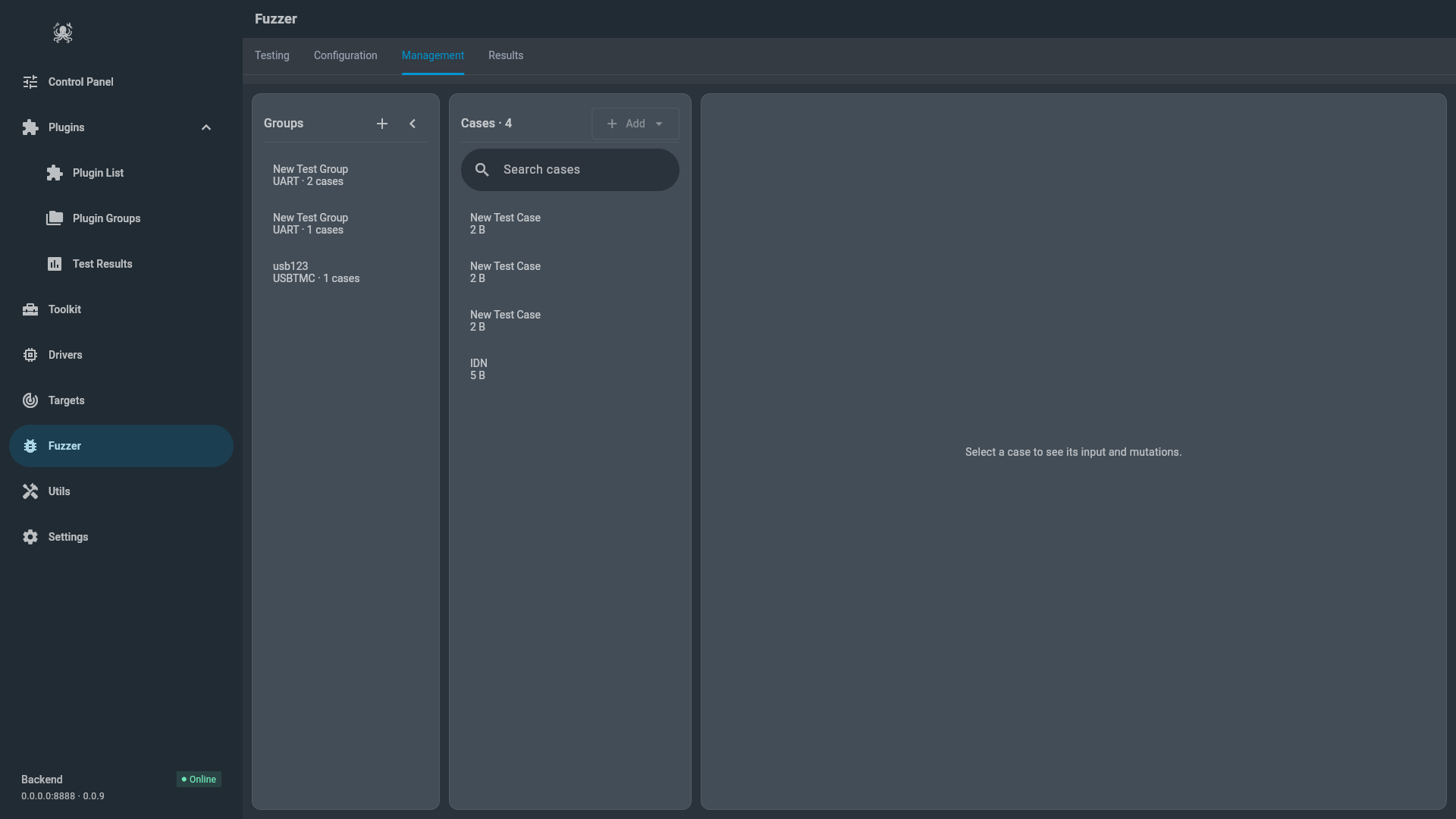
The Management layout
Section titled “The Management layout”The tab has three areas.
- Groups is the left rail. Each entry shows the group name and its protocol label, followed by the case count. The label is the group’s protocol in upper case, or
MIXwhen its cases use more than one protocol. - Cases is the middle list, scoped to the selected group. Each case shows its name and its frame payload size in bytes, with
· disabledwhen the case is turned off. A search field filters the list by name. - The workspace on the right shows the selected case’s input bytes and any local mutation previews.
Group and case actions live in the menu next to each selected item. Editing opens a Properties side sheet. On a narrow window the group rail collapses behind a dropdown and the case replaces the list when you open it.
Create and edit a test group
Section titled “Create and edit a test group”To create a group:
- Open Fuzzer, then select Management.
- In the Groups rail, select + (New group).
- Enter a Name and choose a Protocol:
UART,CAN,SPI,I2C,ETHERNET,DOIP, orUSBTMC. - Select Create group.
The group is created on the backend, the lists reload, and the new group is selected. The chosen protocol is the default for new cases in the group.
To edit the selected group, select the pencil (Edit group) or open Group actions, then Edit group. The Properties sheet shows Group Name, Service ID, and Test Count. Save Changes is enabled once you change a field, and Cancel discards the edits.
The current update sends the group name (and its description) to the backend. Service ID and Test Count are shown for reference and are not part of that update, so edits there are not saved.
- Duplicate group (in Group actions) creates a copy named
<group> (Copy)with the same protocol. - Delete group asks
Delete "<name>" and its cases?before removing the group, all of its cases, and their local mutation previews. Deletion is immediate after you confirm.
To move a case to another group, drag its tile from the Cases list onto a group tile in the rail. The case moves when you drop it.
Create and edit a test case
Section titled “Create and edit a test case”With a group selected, the Add menu has three entries.
- Create case adds a case named
New Test Caseto the group and opens its properties. - Paste text asks for a Case name and a Payload text. The text is encoded as UTF-8 and stored as a hex
payload_hexfield. - Import files turns each file you choose into a case named after that file. The file’s bytes become the case’s
payload_hex.
Select a case to edit it, then use the pencil (Edit case) or Case actions. The Properties sheet has these sections:
- Test Case Information — Case Name, Description, Priority (
LOW,NORMAL,HIGH, orCRITICAL), and Enabled. - Frame Information — Frame Name and Frame Description, labels attached to the frame.
- Protocol Frame Builder — the frame fields plus Frame Preview and Validate (described below).
- Test Configuration — Expected Response, Timeout (seconds), and Iterations.
Case actions also holds Duplicate case (copies the case as <name> (Copy)) and Delete case, which asks Delete "<name>"? before removing it and its stored previews. To move a case, drag it onto another group as described above.
For a USBTMC case, the sheet adds Edit USBTMC case sequence. This opens a JSON editor for the case’s protocol_settings, which sets the mode and sequence for that case; an empty object uses the campaign settings. The field is saved only for USBTMC cases.
Build and validate a protocol frame
Section titled “Build and validate a protocol frame”The Protocol Frame Builder turns named fields into the bytes a case sends. Each field row has a Field Name, a Value, a type badge (HEX, DEC, AUTO, BINARY, or STRING), and a delete button. The badge is highlighted when the field is required. Add Field appends a hex field named New Field <n> with the value 0x00.
The Frame Preview joins the fields into bytes:
- skip empty fields and fields set to
auto; - strip a leading
0x; - remove any non-hex characters;
- pad an odd-length value with a leading zero;
- emit the result as upper-case, space-separated bytes.
So Service ID = 0x22 followed by Data Identifier = 0xF190 previews as 22 F1 90.
Validate checks the frame locally, without contacting the backend: every required field must be non-empty and not auto, and every hex field must contain an even number of hex characters. A valid frame reports Frame is valid and ready for testing with the preview; otherwise the dialog lists each failing field.
When you open a case, the builder creates fields from its stored protocol_frame. If that payload is empty it falls back to Service ID = 0x10 and Sub-Function = 0x01. The panel does not enforce protocol semantics; it only checks the shape described above.
Which fields come from the selected protocol
Section titled “Which fields come from the selected protocol”A group’s protocol is a default, not a fixed schema. Three sources define the fields you see.
- The selected protocol. A new case inherits the group’s protocol (or the source case’s protocol when duplicated). The protocol is stored as the case’s
protocol_type. - Backend frame templates. When the backend returns protocol-frame templates, the panel builds each field from the template’s name, type, default value, and required flag. If the templates do not load, the panel falls back to the two UDS-style fields
Service IDandSub-Function. - Per-protocol defaults. When a case is created without an explicit frame, the panel applies a default payload for the protocol:
| Protocol | Default fields |
|---|---|
UART | command = 0x01, data = 0x00 |
CAN | service_id = 0x10, sub_function = 0x01 |
SPI | register = 0x00, value = 0x01 |
I2C | address = 0x50, data = 0x00 |
ETHERNET | packet_type = 0x0800, payload = 0x00 |
DOIP | protocol_version = 0x02, message_type = 0x01 |
USBTMC | payload_hex = 2a49444e3f0a (the ASCII bytes of *IDN?\n) |
Because field names are free text and the builder accepts any field you add, treat these defaults as starting points. Confirm the real identifiers, services, and payloads against your device’s documentation rather than assuming a default is correct for it.
Preview local mutations for a case
Section titled “Preview local mutations for a case”The workspace is a sandbox for the selected case. It reports the case’s protocol, payload size, expected response, timeout, and iterations, then shows the Case input: each frame field with its byte offset, hex value, and length, above a byte view.
The controls are Strategy, Count, Seed, and Generate:
- the strategies are Mixed, Bit flip, Byte flip, Byte arithmetic, Interesting values, Insert bytes, Delete chunk, Duplicate chunk, Swap bytes, and Radamsa;
- Count accepts 1 to 50,000 and the batch is capped at 64 MiB of payload;
- Seed fixes the random sequence so the same seed reproduces the same batch.
Generated previews are saved locally, not on the backend. Selecting one shows which bytes changed, were inserted, or were removed, and its operations. From the header you can Download bytes, and from Mutation batch actions you can Export batch JSON or Clear batch. Copy to new case creates a disabled case named <case> · mutation <n> whose description records the seed and operations, so you can keep a variation without overwriting the original.
Previews never send traffic to the target; they simulate mutations locally. The Radamsa strategy additionally requires the desktop app with radamsa on PATH, and is unavailable on Web, Android, and iOS.
Import and export
Section titled “Import and export”Two exports and two imports are available today. All of them run on the client: they use the desktop save/open dialogs, and on the web they download or read files through the browser.
Export a group
Section titled “Export a group”Select a group, open Group actions, and choose Export group. The panel writes test-group.json containing the group and every case it holds:
{ "test_groups": [ { "id": "42", "name": "New Test Group", "protocol_type": "uart" } ], "test_cases": [ { "id": "107", "group_id": "42", "name": "New Test Case", "description": "Protocol test case", "protocol_type": "uart", "protocol_frame": { "command": "0x01", "data": "0x00" }, "protocol_settings": {}, "enabled": true, "priority": "normal", "expected_response": "0x50", "timeout": 5000, "iterations": 100 } ]}protocol_frame holds the raw field values, timeout is in milliseconds, priority is the lower-case name, and protocol_settings is included for USBTMC sequence cases. The panel has no matching importer for this file, so use it for review, backup, or your own tooling rather than to restore a group.
Export a mutation batch
Section titled “Export a mutation batch”With a case selected, open Mutation batch actions and choose Export batch JSON. The panel writes mutation-preview.json describing every generated preview:
{ "source_case_id": "107", "source_case_name": "New Test Case", "engine": "local-radamsa-style-simulation", "mutations": [ { "engine": "local-radamsa-style-simulation", "index": 0, "seed": 1337, "original": [1, 0], "bytes": [1, 1], "protocol_frame": { "command": "01", "data": "01" }, "operations": ["Bit flip · data"] } ]}original and bytes are decimal byte arrays, and operations names the strategy and field for each change. When the Radamsa strategy is used, engine is radamsa instead.
Import cases
Section titled “Import cases”Both imports create cases in the selected group, and neither reads test-group.json.
- Paste text stores the text as UTF-8 bytes in a
payload_hexfield. - Import files stores each chosen file’s bytes in a
payload_hexfield and names the case after the file.
A non-destructive lab example
Section titled “A non-destructive lab example”This example defines a read-only request and previews variations without sending anything. It uses a diagnostic read service as a placeholder; substitute the identifier from your device’s documentation.
- Create a group named
Lab · Read DIDwith protocolCAN. - With that group selected, choose Add then Create case.
- In Properties, set Case Name to
Read Data By Identifier, Priority toNORMAL, Enabled on, Timeout to2, Iterations to1, and Expected Response to0x62. - In the frame builder, set the first field to
service_id = 0x22(Read Data By Identifier) and rename the second field todata_identifierwith the value0xF190. Use the identifier your ECU documents. - Select Validate. The preview shows
22 F1 90. - In the workspace, choose Generate with Count
5and Seed1337, then read the changed, inserted, and removed bytes. - Export batch JSON to keep the preview for review.
Stop at the preview. 0x22 is a read service and one iteration sends a single request, which keeps the definition non-destructive, but the case is only executed from the Testing tab on an isolated bench with authorization. See IoT Fuzzer: Running a test campaign before you start it.
Troubleshooting
Section titled “Troubleshooting”| Symptom | What to check |
|---|---|
Select a group to view its cases. | Select a group, or create one first |
| The Add menu is disabled | A group must be selected before you can add cases |
No group selected or available | Select a group before creating a case |
Frame validation failed | Fill every required field and use an even number of hex characters |
Failed to load protocol frame templates | The backend did not return templates; reconnect it, or edit the fallback fields |
Import failed | The file could not be opened or read; try another file |
| Radamsa previews are unavailable | Use the desktop app with radamsa on PATH, or choose another strategy |
Count must be between 1 and 50,000 | Lower Count |
| Imported case appears empty | Check that the file had readable bytes and the case shows a non-zero payload size |
Limits
Section titled “Limits”- Management authors, stores, and previews definitions; it does not execute them.
- Local frame validation checks required fields and even-length hex only. It does not confirm that a frame is valid for the device or protocol.
- Mutation previews are local simulations. They are not evidence of how the target will respond.
- A group protocol is a default. Individual cases can carry a different
protocol_type. - Deleting a group or case is immediate after confirmation, and deleting a group also deletes its cases and their local previews.
- The group export has no matching importer in the panel.
- If the backend is unreachable, the panel falls back to offline sample data and reports an error banner; changes made then are not persisted.
Next step
Section titled “Next step”Prepare the service and protocol first with IoT Fuzzer: Configuration. When your group is ready, run it with IoT Fuzzer: Running a test campaign and review the output with IoT Fuzzer: Results and evidence. For the position of this tab in the application, see the IoTSploit UI feature map.