
Control a USBTMC instrument from the desktop Toolkit
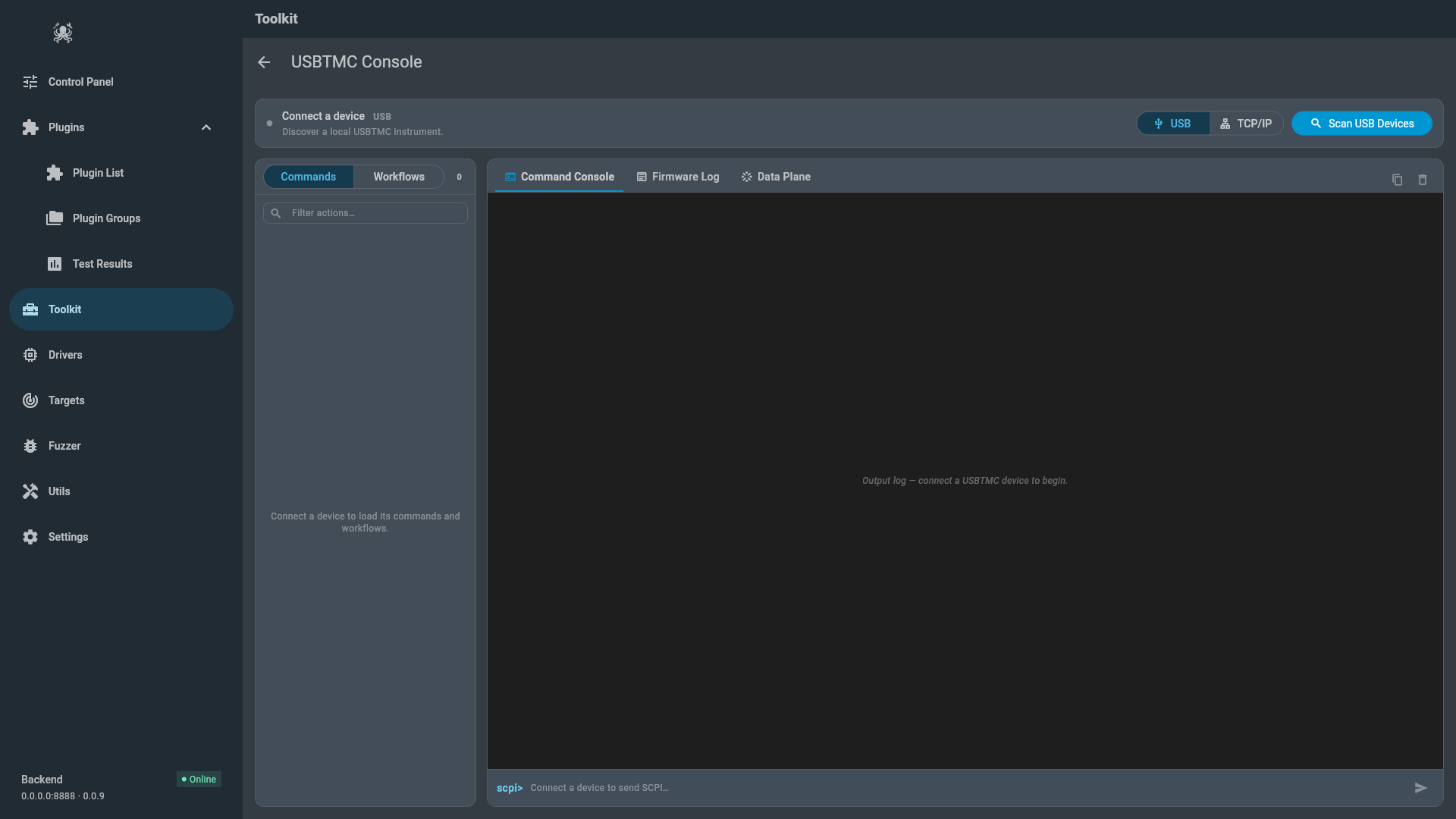
USBTMC Console turns a connected instrument into a live SCPI session. It scans for a USBTMC device, opens a session over USB or TCP, then builds its command list from the device’s own description instead of a fixed set of buttons. You can send individual commands, run multi-step workflows, read the structured results, and watch the device’s firmware log at the same time.
Availability
Section titled “Availability”USBTMC Console is a desktop-only tool. It performs raw USB transfers, which the Web, Android, and iOS builds cannot do, so it is hidden there.
Open it from the desktop navigation:
- Open Toolkit.
- Select USBTMC Console.
In some builds the same panel appears as the Device Control tab of Utils. The panel itself is identical; only the entry point differs.
Before you start
Section titled “Before you start”You need:
- a USB instrument whose firmware exposes a USBTMC interface (class
0xFE, subclass0x03), such as a board running theiotsploit-usbreference firmware; - a desktop Linux, macOS, or Windows build of IoTSploit;
- for TCP, the instrument’s address and the raw-SCPI port, normally
5025.
USB permissions on Linux
Section titled “USB permissions on Linux”On Linux the panel opens the device’s raw node at /dev/bus/usb/<bus>/<device>, not the kernel’s /dev/usbtmcN character device. That raw node defaults to root:root mode 0660, so a normal user gets permission denied when connecting.
Install the rules file shipped with the application:
sudo cp docs/udev/99-iotsploit-usbtmc.rules /etc/udev/rules.d/sudo udevadm control --reload-rules && sudo udevadm triggerThen unplug and replug the instrument. The file grants access to the plugdev group and to the active desktop session through uaccess. It matches the iotsploit-usb reference device (1209:0001) and also contains a commented rule that matches any device exposing a USBTMC interface, for firmware that ships a different VID and PID.
The kernel usbtmc driver claiming the interface does not block the panel: the backend detaches and claims the interface itself when it connects.
Connect to an instrument
Section titled “Connect to an instrument”- Confirm the instrument is attached to the lab system.
- Select USB.
- Select Scan USB Devices.
- Choose the instrument in the device list.
- Select Connect USB.
The device card reports the connection state as it moves from idle to scanning to found to connecting to connected. If the wrong instrument is selected, or you want to release the device, select Disconnect. Disconnect closes the session and stops any log or data stream that was running.
Connect over TCP instead
Section titled “Connect over TCP instead”For an instrument reached over Wi-Fi or Ethernet, select TCP/IP, enter the host, and select Connect TCP. The port defaults to 5025. Everything after connecting is the same as a USB session, except the device log, which travels over a USB-only interface.
How the console learns the device
Section titled “How the console learns the device”The panel keeps no device list of its own. On connect it asks the instrument to describe itself with SYSTem:HELP:DESCription?, which returns an IEEE-488.2 definite-length block of DEV, CMD, and WF records. The CMD records become Quick Commands and the WF records become Quick Workflows.
If the device does not implement the descriptor but does answer the flat SYSTem:HELP:HEADers? catalog, the panel falls back to listing those bare command headers, without summaries or workflows.
Run Quick Commands and Workflows
Section titled “Run Quick Commands and Workflows”The left rail has two lists.
- Commands shows each advertised command with its summary and parameters. Select one to send it. A query fills its parameters and reads the response into the output log.
- Workflows shows the multi-step recipes the device advertises. A workflow runs its trigger, polls a status query, and then either fetches a result set or walks through interactive prompts.
For the iotsploit-usb ESP32-S3 reference firmware, the descriptor advertises:
- the data-plane controls
SYSTem:STReam:STARt,STOP,STATe?,COUNt?,PORT?, andFORMat?; GPIO:SETandGPIO:GET?for pin output and input;ADC:READ?for an analog channel;- the
WLAN:SCANandBLE:SCANfamilies with their done, count, and per-index result queries, plus the BLE connect and pairing commands.
The component’s standard commands (*IDN?, *RST, SYSTem:ERRor?) are handled by the device but are not part of the descriptor, so send them from the scpi> field.
A Wi-Fi workflow, for example, sends WLAN:SCAN, polls WLAN:SCAN:DONE? until it returns 1, reads WLAN:SCAN:COUNt?, and fetches each row with WLAN:SCAN? <index>.
Answer interactive prompts and read result tables
Section titled “Answer interactive prompts and read result tables”Some workflows need information that only the operator has. Instead of failing, the workflow raises an inline prompt and waits:
- passkey asks for a value the peer displays, such as a BLE pairing passkey;
- number and text ask for a typed value;
- confirm shows a value and accepts or rejects it;
- display shows a value for you to enter elsewhere and sends nothing back.
When a fetch workflow finishes, the panel renders the rows with the column names and types the device declared. The Wi-Fi rows carry ssid, rssi (dBm), channel, authmode, and bssid; the BLE rows carry addr, rssi (dBm), name, and adv_type. The last result set stays visible in the Results tab until another workflow replaces it.
Read command output and firmware logs
Section titled “Read command output and firmware logs”The console area has three tabs, and they run independently of each other:
- Command Console logs every SCPI line sent and received, with the timestamp and direction. The
scpi>field at the bottom sends a raw command; a query reads its response, a plain command does not. - Firmware Log streams the instrument’s own log output over a second USB interface (bulk-IN
0x82). Each line is colour-coded by severity, and the reader keeps running while you use the Command Console. On a TCP session this tab reports that the log interface is unavailable. - Data Plane shows raw records from the device’s continuous data stream. The device declares the port, record size, and field schema; the panel shows the bytes, or the decoded fields when it understands the schema. The capture only reads what the device is already sending: start and stop it with the device’s own
SYSTem:STReamcommands.
Behavior is device-specific
Section titled “Behavior is device-specific”Because the panel is driven by the descriptor, two instruments with different firmware show different commands, workflows, parameter types, and result columns. Treat the command set and any pin, channel, or timing value as properties of the connected firmware, not of the application.
Two differences are worth knowing before a session:
- Over TCP, some firmware refuses
WLAN:SCANbecause the channel sweep would drop the connection carrying the command. The panel reports the rejection from the error queue instead of waiting for a timeout that would hide the cause. - A firmware build without a data plane answers port
0, and the Data Plane tab reports that there is nothing to stream.
Troubleshooting
Section titled “Troubleshooting”| Symptom | What to check |
|---|---|
permission denied on Connect (Linux) | Install the udev rule, reload rules, and replug the device |
| No devices after Scan | Confirm the interface is USBTMC (0xFE/0x03) and the cable and port |
| Selected device disconnected | Rescan; a USB address changes after a replug |
| Connect fails after another tool used the device | Disconnect the other tool; only one session can hold the interface |
| Workflow ends in a timeout | Read the firmware log; the device may have rejected the trigger |
Firmware Log shows unavailable | The session is over TCP, or the firmware has no vendor log interface |
Command returns -113,"Undefined header" | The device does not implement that header; check its own command list |
Limits
Section titled “Limits”- Desktop only; no Web, Android, or iOS support.
- One session per device interface at a time.
- The application claims raw USB access and detaches the kernel
usbtmcdriver for the session. - Commands, workflows, parameters, and result columns come from the firmware; the panel cannot invent a command the device does not advertise.
- A successful command is not a security verdict. Verify device behavior against the expected result for your test.
Next step
Section titled “Next step”To prepare another instrument or review an attached device, continue with Targets and hardware drivers. For the broader map of where each IoTSploit tool runs, see IoTSploit UI feature map.